ChatGPT is genuinely good at writing HTML now. A landing page draft, a pricing table, a report for a client, an email template. Then comes the awkward part: it hands you a code block, and the person who needs to see the result does not want a code block. So you save a file, or paste it into some hosting thing, or worse, send a screenshot.
There is a shorter path. ChatGPT supports custom connectors now (the same MCP standard Claude uses), which means it can publish the page itself. You say "create a commentable link", and thirty seconds later there is a private URL in the chat that anyone can open on any device. No account for them, no file for you.
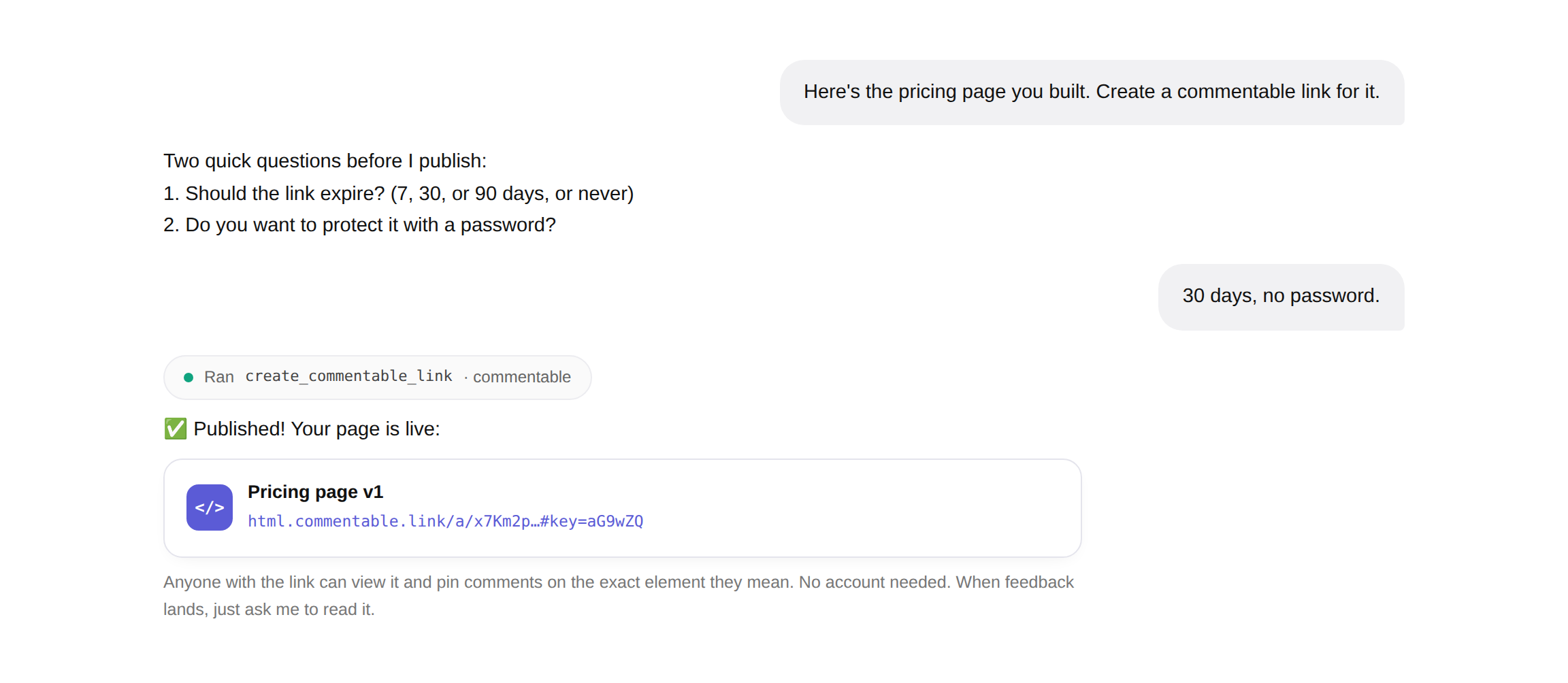
And because the link is a commentable page, the loop keeps going: whoever opens it can pin comments directly on the elements they mean, ChatGPT can read that feedback itself, fix the page, and push the new version to the same URL. The round trip from "built it" to "client feedback handled" happens inside one chat.
The two-minute setup
You need a ChatGPT Plus or Pro plan (Developer Mode lives there; on Business and Enterprise a workspace admin has to switch it on), and a free commentable account for the API key.
- Grab an API key: dashboard → AI connectors → New API key. It is shown once, and the setup snippets come with it already filled in.
- In ChatGPT: Settings → Apps & Connectors → Advanced settings → turn on Developer mode.
- Open the New Plugin dialog. There is a direct shortcut: this link opens it in one click (or navigate to Apps & Connectors and hit Create). Name it commentable, paste your connector URL as the Server URL, and set Authentication to No Auth (your key rides inside the URL, so treat that URL like a password). Tick the confirmation box. ChatGPT shows that warning for every custom server, not just this one.
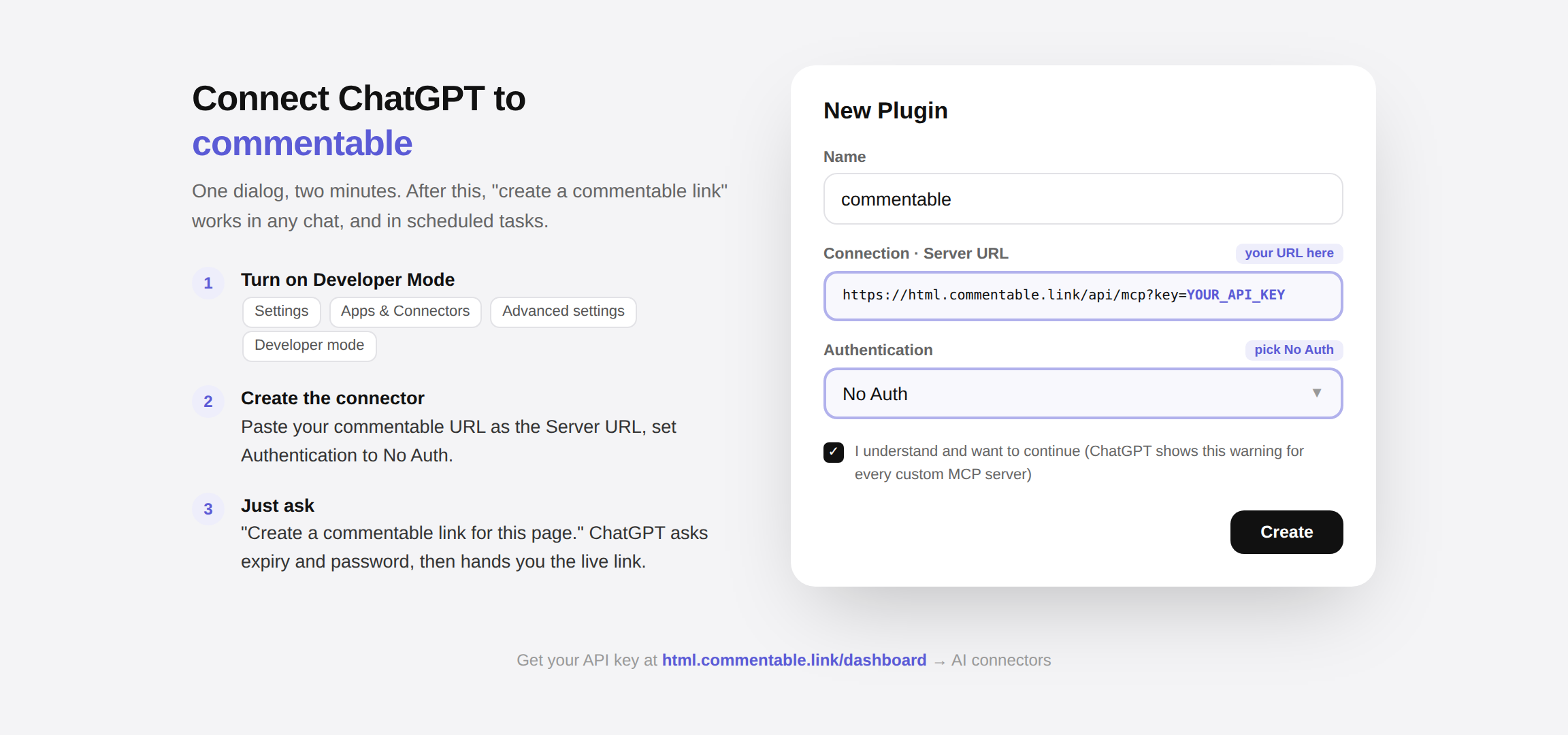
That is the whole thing. ChatGPT discovers four tools: publish, update in place, read feedback, and list your links. The step-by-step version with the current screenshots lives on the connector page.
What using it feels like
You do not learn an API. You talk:
- "Create a commentable link for this." ChatGPT asks two questions (should the link expire, do you want a password) and returns the live URL.
- "Read the feedback on my link." Every open comment comes back pinned to the exact element it points at, selector and snippet included, so the fix targets the right thing on the first try.
- "Apply the fixes and update the link." Same URL, new version. Nobody re-downloads anything, and the version history keeps every revision.
The part that surprised me is scheduled tasks. Connectors work inside them, so you can set a task like "every morning, check the feedback on my proposal link; if there are open comments, apply them and update the page." Your page answers its own review comments before you have had coffee. The same pattern keeps a data dashboard fresh: rebuild with current numbers, update the same link, daily. We call those LIVE artifacts, and they work identically from ChatGPT and Claude.
The same trick in Gemini CLI
Gemini's consumer app does not take custom connectors yet, but Gemini CLI does, and it is arguably the cleanest setup of the three because the key travels in a header instead of a URL. One entry in ~/.gemini/settings.json:
{
  "mcpServers": {
    "commentable": {
      "httpUrl": "https://html.commentable.link/api/mcp",
      "headers": { "Authorization": "Bearer YOUR_API_KEY" }
    }
  }
}
Run /mcp inside Gemini CLI to confirm the tools loaded, then ask it to publish the way you would ask ChatGPT. One API key works across all three assistants, and every page lands in the same dashboard.
A note on what the viewer sees
None of this shows up on the published page. Your reviewer gets a clean URL that opens in their browser, wearing your logo and colors if you have set them, with a small comment layer they can use without signing up for anything. They do not need ChatGPT, Claude, Gemini, or any idea of what an MCP connector is. That is rather the point: the AI tooling stays on your side of the link.
If you already use commentable from Claude, your existing key works in ChatGPT as is. Add it once, and "create a commentable link" means the same thing everywhere you work.